

Fix Can’t resolve ‘fs’ in Next.js: 3 Easy Methods
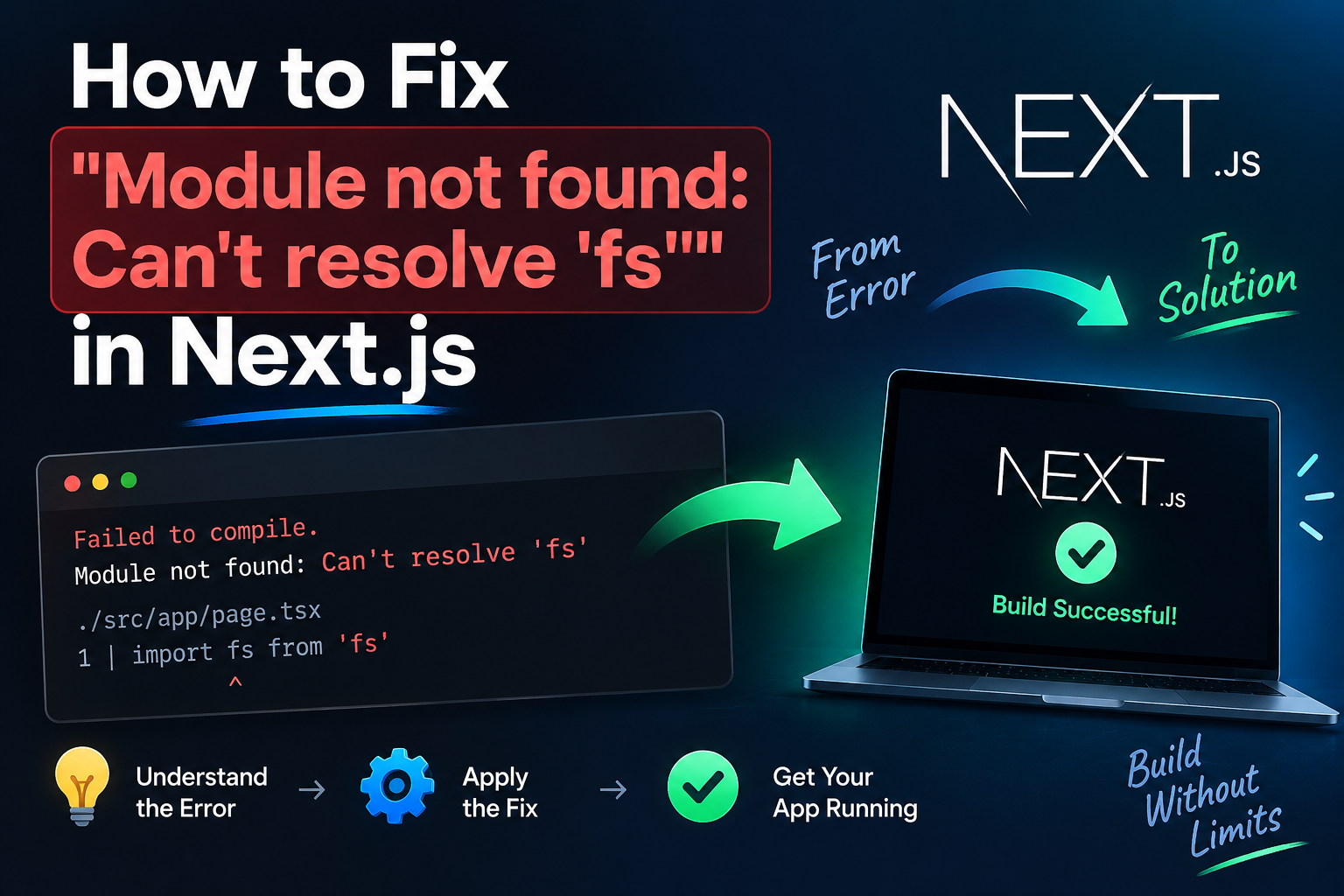
If you are building web applications and facing the error Can’t resolve fs in Next.js, this step-by-step guide will help you fix it permanently.
Whether you are working with the App Router or Pages Router, encountering this Webpack compilation failure is extremely common. It usually happens right after you convert a component into a Client Component using 'use client', or when importing a Node.js package into a file that runs inside the user’s browser.
Why You Get Can’t resolve fs in Next.js
To eliminate the Can’t resolve fs in Next.js build error, you need to understand how the framework handles the boundary between the Node.js server and the browser runtime.
fs (File System) is a built-in Node.js module designed exclusively for server-side operations. It allows your backend code to read files, write logs, and access local storage directories. Browsers do not have access to the server’s file system due to security restrictions.
When building your project, Next.js separates code into two bundles:
Server Bundle: Runs strictly on Node.js. Core modules like
fs,path, andchild_processwork natively here.Client Bundle: Transpiled to JavaScript and executed directly inside the user’s browser.
Starting with Next.js 11 (and Webpack 5), automatic polyfilling for core Node.js modules on client builds was removed. If Webpack detects an import fs from 'fs' or require('fs') statement inside a Client Component, it attempts to locate an fs npm package within your browser bundle. When it fails, the build engine crashes with Module not found: Can't resolve 'fs'.
If your project also encounters server startup crashes, check out our guide on fixing port blocking errors in Node.js.
Method 1: Separate Server Logic from Client Components
In modern Next.js applications, components run as Server Components by default. However, as soon as you add the 'use client' directive to handle interactive state (useState) or browser effects (useEffect), that entire file is moved into the client bundle.
Attempting to execute fs.readFileSync() inside a file marked with 'use client' will trigger the Can’t resolve fs in Next.js error every time.
Broken Approach (Client Component Reading Server Files)
// ❌ INCORRECT: Importing 'fs' inside a Client Component
'use client';

import fs from 'fs'; // Throws: Can't resolve 'fs'
import { useState } from 'react';

export default function UserDashboard() {
  const [activeTab, setActiveTab] = useState('overview');

  // This fails because 'fs' cannot execute in the browser
  const fileData = fs.readFileSync('./data.json', 'utf-8');

  return <div>{fileData}</div>;
}
Correct Approach (Passing Server Data as Props)
Keep all fs operations inside a Server Component or Route Handler, and pass the required data down to your Client Component as props. Refer to the official Next.js Documentation for deeper details on Server-Client component boundaries.
// 📁 app/dashboard/page.tsx (Server Component)
import fs from 'fs';
import ClientDashboardView from './ClientDashboardView';

export default function DashboardPage() {
  // ✅ SAFE: Runs strictly on the Node.js server environment
  const rawData = fs.readFileSync('./data.json', 'utf-8');
  const parsedData = JSON.parse(rawData);

  return <ClientDashboardView initialData={parsedData} />;
}
Now, isolate your client-side interactive code in its own component file:
// 📁 app/dashboard/ClientDashboardView.tsx
'use client';

import { useState } from 'react';

export default function ClientDashboardView({ initialData }: { initialData: any }) {
  const [data, setData] = useState(initialData);

  return (
    <div>
      <h1>Welcome Back, {data.username}</h1>
      <button onClick={() => alert('Dashboard updated')}>Refresh</button>
    </div>
  );
}
Method 2: Configure Webpack Fallbacks in next.config.js
Sometimes, you are not importing fs directly. A third-party package (such as a markdown processor or PDF generator) might contain a conditional check like if (typeof window === 'undefined') require('fs').
Even if that package never executes fs in the browser, Webpack’s static analyzer detects the require('fs') string during compilation and throws the Can’t resolve fs in Next.js exception.
To instruct Webpack to bypass fs on client builds without breaking compilation, update your next.config.js:
/** @type {import('next').NextConfig}*/
const nextConfig = {
  webpack: (config, { isServer }) => {
    // If building for the browser, tell Webpack to ignore server-only modules
    if (!isServer) {
      config.resolve.fallback = {
        ...config.resolve.fallback,
        fs: false,
        path: false,
        child_process: false,
        net: false,
        tls: false,
      };
    }

    return config;
  },
};

module.exports = nextConfig;
How This Fix Works
Setting fs: false inside config.resolve.fallback tells Webpack: “If a client-side module requests fs, do not crash the build. Replace it with an empty mock module.”
Note: This configuration allows the compilation to pass, but it does not make
fsfunctional in the browser. If your client code calls anfsmethod at runtime, it will raise aTypeError: fs.readFileSync is not a function.
Method 3: Guard Server Utilities with server-only
To prevent team members or future builds from accidentally importing server modules into Client Components, install Vercel’s official server-only package:
npm install server-only
Add import 'server-only' at the top of any helper file that relies on Node.js core modules:
// 📁 lib/posts.ts
import 'server-only';
import fs from 'fs';
import path from 'path';

export function getPostBySlug(slug: string) {
  const fullPath = path.join(process.cwd(), 'posts', `${slug}.md`);
  return fs.readFileSync(fullPath, 'utf-8');
}
If anyone attempts to import posts.ts inside a Client Component, Next.js will throw a clear build error indicating that the module is restricted to server runtimes, preventing the Can’t resolve fs in Next.js error from silently breaking Webpack.
Quick Troubleshooting Checklist
If you applied these changes and the build error persists:
Clear Next.js Cache: Delete the local build cache by running
rm -rf .next(or manually removing the.nextfolder in Windows), then restart your development environment withnpm run dev.Check Route Handlers: Ensure your API files (
app/api/.../route.ts) do not include the'use client'directive. Route Handlers must remain server-side modules.Inspect Dependency Imports: If a third-party package triggers the error, verify if it offers a web-compatible entry point (e.g.,
import { tool } from 'package/browser').
OpenAI SSE Streaming Timeout Cloudflare [2026 SOLVED]