


How to Fix Error listen EADDRINUSE address already in use :::3000 in Node.js
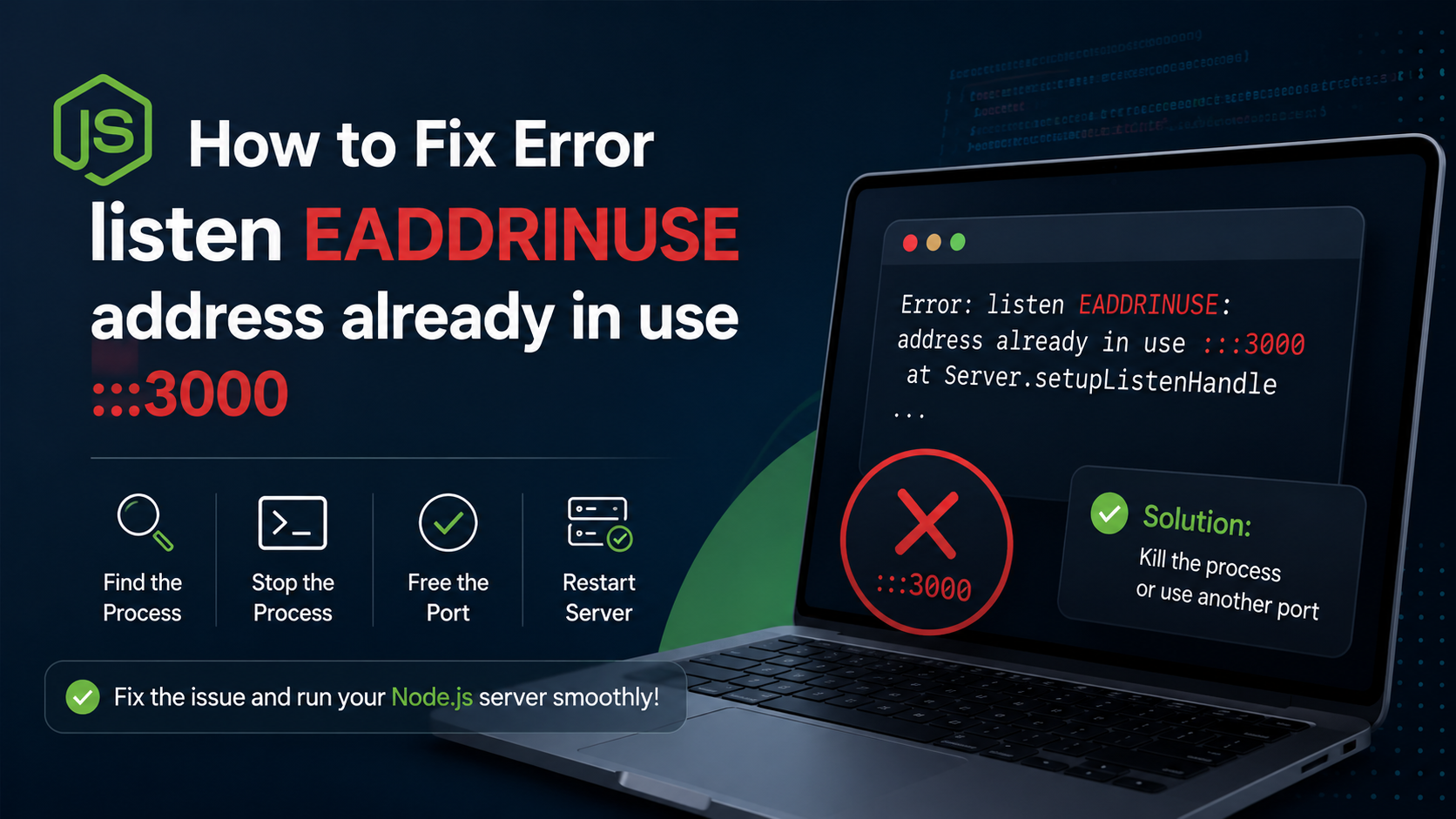
If you are developing backend applications with Node.js and Express, encountering the Error: listen EADDRINUSE: address already in use :::3000 is almost a rite of passage. One minute your server is running perfectly, and the next, your terminal crashes with a massive stack trace.
This error halts your development loop completely. Fortunately, it is incredibly easy to diagnose and fix, whether you are developing on Linux, macOS, or Windows.
Understanding the Logic: Why Does This Error Occur?
Before running commands blindly, let’s look at the core logic behind this error.
The Parking Slot Analogy: Imagine you are driving a car and trying to park in a specific parking slot (Port 3000). If another vehicle is already parked there, you cannot occupy the slot until that vehicle leaves.
In networking, a Port can only be allocated to one process at a time. When Node.js throws the EADDRINUSE (Error Address Already In Use) exception, it means your script is trying to bind to port 3000, but a ghost background process—usually a previous instance of your application that didn’t close gracefully—is already occupying it.
Quick Comparison: OS-Specific Solutions
Here is a bird’s-eye view of how we resolve this issue across different environments:
| Operating System | Command to Find Process | Command to Kill Process |
| Linux / macOS | lsof -i :3000 | kill -9 <PID> |
| Windows (CMD) | netstat -ano | findstr :3000 | taskkill /PID <PID> /F |
🐧 Solution 1: Fixing the Error on Linux & macOS
On Unix-based operating systems, we use the terminal to track down the network file socket and terminate it instantly.
Step 1: Locate the Zombie Process ID (PID)
Open your terminal and execute the lsof (List Open Files) command targeted at your blocked port:
Bash
lsof -i :3000
This will output a structured table showing the process details. Look under the PID column:
Plaintext
COMMAND   PID USER   FD   TYPE DEVICE SIZE/OFF NODE NAME
node    14256 root   12u  IPv6  45212      0t0  TCP *:3000 (LISTEN)
Step 2: Force Kill the Process
In the example output above, the Process ID occupying the port is 14256. Run the kill command with the -9 (SIGKILL) flag to terminate it immediately:
Bash
kill -9 14256
Note: Make sure to replace 14256 with the exact PID displayed in your own terminal output.
🪟 Solution 2: Fixing the Error on Windows
Windows handles process tables differently. If you are using Command Prompt (CMD) or PowerShell, use the following framework.
Step 1: Find the Active Port Occupant
Open your Command Prompt as an Administrator and execute the netstat command:
DOS
netstat -ano | findstr :3000
Your terminal will return a line indicating the active local address socket and the PID at the very end of the string:
Plaintext
TCP 0.0.0.0:3000 0.0.0.0:0 LISTENING 18924
Step 2: Terminate via Taskkill
The last integer in that row (18924) is your target PID. Use the forceful task termination utility to clear the port:
DOS
taskkill /PID 18924 /F
🛡️ Best Practices: Preventing EADDRINUSE Permanently
Manually killing ports via the command line every time your server crashes can become tedious. To build a more resilient architectural layer, implement these two pro-developer techniques inside your codebase.
1. Implement Dynamic Environment Port Allocation
Avoid hardcoding rigid integers like 3000 in your production strings. Always check for an environment variable first, allowing the hosting runtime to dynamically shift sockets if needed:
JavaScript
const express = require('express');
const app = express();

// Use environment port or default to 3000
const PORT = process.env.PORT || 3000;

app.listen(PORT, () => {
    console.log(`Server architecture is successfully listening on port ${PORT}`);
});
2. Add a Graceful Shutdown Loop
When your application receives a termination signal (like pressing CTRL + C), explicitly instruct the Node.js process to close its HTTP server connections before exiting the runtime loop:
JavaScript
process.on('SIGINT', () => {
    server.close(() => {
        console.log('HTTP server closed gracefully. Sockets unlocked.');
        process.exit(0);
    });
});
By adding these clean engineering practices into your code repository, you minimize zombie processes and ensure your development port clears up instantly every single time.
How to Fix Docker Container Exiting
How to Fix MongoDB Atlas Connection Timeout Error in Node.js
Fixing Next.js Hydration Errors
4 thoughts on “How to Fix Error listen EADDRINUSE address already in use :::3000 in Node.js”