


How to Fix Docker Container Exiting Immediately
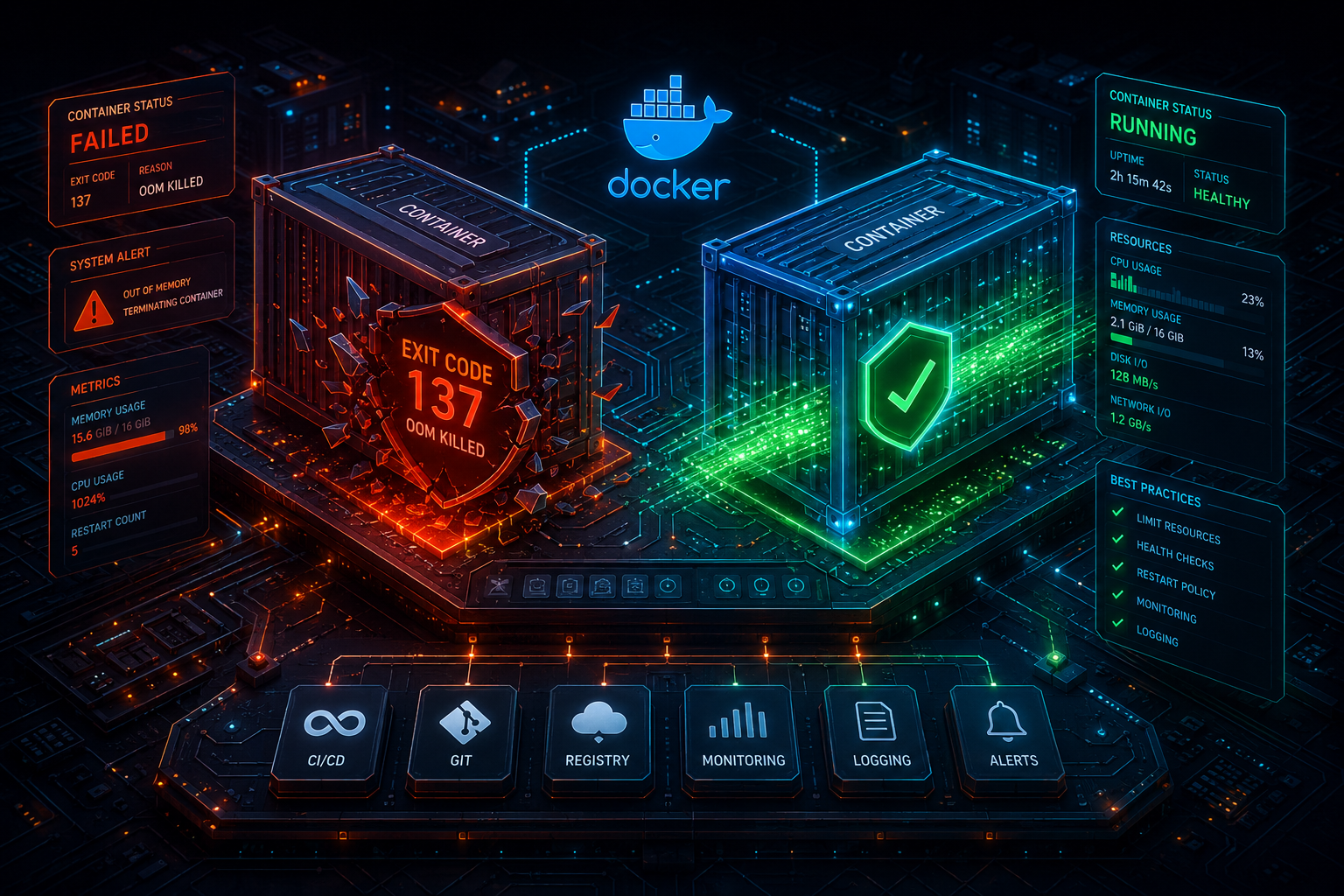
Containerization has fundamentally altered how cloud-native software architectures are deployed, scaled, and managed. However, migrating legacy virtual machine (VM) architectures to lightweight Docker containers often introduces developers to unexpected runtime patterns. One of the most persistent bottlenecks encountered by systems engineers and DevOps teams is the issue where a newly deployed or compiled container shuts down instantly upon execution.
When checking your deployment stack status via docker ps -a, instead of seeing an active status layer, you are met with:
CONTAINER ID   IMAGE          COMMAND                  CREATED         STATUS                     PORTS     NAMES
a1b2c3d4e5f6   ubuntu:latest  "/bin/bash"              10 seconds ago  Exited (0) 9 seconds ago             dev_sandbox
7e8f9a0b1c2d   node-app       "docker-entrypoint.s…"   2 minutes ago   Exited (137) 2 minutes ago            api_service
This comprehensive, systems-level debugging guide breaks down the core execution mechanics of Docker’s runtime environment. It delivers production-grade solutions to implement a permanent docker container exits immediately fix for the two most common termination sequences: Exit Code 0 and Exit Code 137.
The Core Philosophy of Docker: The PID 1 Process
To debug why a container stops unexpectedly, you must first understand how Docker isolates resources. Unlike traditional Virtual Machines that execute a full operating system instance complete with independent kernels, init daemons (systemd, sysvinit), and multiple background processes, a Docker container is essentially a highly isolated wrapper around a single primary process.
This primary process executes with a Linux Process ID of 1 (PID 1).
The lifecycle of any Docker container is mathematically and structurally tied to the lifecycle of this PID 1 process:
As long as the process running as PID 1 remains active, processing tasks in the foreground, the container stays alive.
The moment the PID 1 process stops executing, finishes its script sequence, or is killed by the system kernel, the Docker engine tears down the entire network, memory isolation layer, and container stack instantly.
If your base image doesn’t have a persistent, long-running service (like an active Nginx web server, a Node.js runtime environment, or an ongoing database server daemon) configured as its entrypoint, the container will execute its short task and immediately shut down.
Case Study 1: Resolving Exit Code 0 (Success/Idle Mismatch)
An Exit Code 0 indicates a clean execution state. It means the process executed to completion without encountering software errors, syntax blocks, or segmentation faults.
Why Does It Happen?
This error typically happens when a developer spins up a base system image—such as Ubuntu, Debian, or Alpine Linux—without declaring an interactive terminal loop or an explicit foreground service. For instance, executing docker run -d ubuntu spins up the container, runs the default command /bin/bash, realizes there is no input data stream or background service keeping the shell open, finishes executing the shell script with a status of “success”, and stops immediately.
The Fix: Implementing Interactive Terminals and TTY Allocations
When using local development cycles, you can force the container to remain active by passing the Interactive (-i) and TTY (-t) execution flags.
# Bypasses instant termination by allocating a pseudo-TTY terminal container loop
docker run -it -d --name interactive_env ubuntu:latest
-i(interactive): Keeps the container’s standard input (stdin) open even if it is running in detached mode.-t(tty): Allocates a pseudo-TTY terminal wrapper, effectively mimicking an open terminal instance that prevents the shell from completing its lifecycle hook.
Fixing Exit Code 0 in docker-compose.yml
If your tech stack uses Docker Compose configurations, you can achieve the same persistent state by explicitly mapping the tty and stdin_open configuration variables inside your service block layout:
version: '3.8'

services:
  dev_environment:
    image: ubuntu:latest
    container_name: local_dev_container
    tty: true
    stdin_open: true
    restart: unless-stopped
The Production Alternative: The Persistent Null Stream Hack
Using interactive flags (tty: true) is not considered a best practice for production cloud containers (like AWS ECS or Kubernetes pods) because it keeps unnecessary terminal allocation pipelines open in memory. Instead, use an explicit background loop or a persistent, non-terminating utility command within your Dockerfile or ENTRYPOINT declarations.
The cleanest pattern to achieve this is tailing the system’s null storage pipeline:
FROM alpine:latest
RUN apk update && apk add --no-cache curl bash
# Forces PID 1 to listen to an endless null execution layer
CMD ["tail", "-f", "/dev/null"]
Case Study 2: Diagnosing Exit Code 137 (OOMKilled – Out of Memory)
While Exit Code 0 means a clean execution closure, Exit Code 137 indicates a severe, unrecoverable system crash. It means that the container was forcibly killed by the host operating system’s kernel.
Why Does It Happen?
Exit Code 137 is almost always the direct result of the Linux kernel’s OOM (Out-of-Memory) Killer intervention. When the physical RAM resources of your host system drop to critical limits, or when a container exceeds the hard hardware resource constraints assigned to its cgroups container configuration, the host OS kernel stops the process instantly via a SIGKILL signal (Signal 9).
The math behind the code value is standard across Linux: 128 + Signal Number. Since a SIGKILL uses value 9, the calculation resolves directly to:
Identifying OOMKilled Conditions on Host Infrastructure
To verify that your docker container exits immediately fix strategy requires memory optimization rather than configuration patching, execute the docker inspect command on the failed container entity and query the State JSON block:
docker inspect api_service --format='{{json .State}}'
Look for the explicit OOMKilled boolean key pair in the response:
{
  "Status": "exited",
  "Running": false,
  "ExitCode": 137,
  "Pid": 0,
  "OOMKilled": true,
  "Error": ""
}
If OOMKilled reads true, your application layer ran out of memory allocations.
The Fix: Implementing Cgroup Hardware Boundaries
To prevent random memory crashes, you must explicitly manage your microservices container thresholds using hard limit boundaries within your initialization script allocations.
Hard Allocation Limits via Docker CLI:
# Limits the container execution node to 512 Megabytes of hardware RAM capacity
docker run -d --name optimized_api --memory="512m" --memory-swap="1g" node-app:latest
Configuring Scaled Resource Paths in Docker Compose:
For standard deployment nodes utilizing Docker Compose Engine v3, manage scaling anomalies by mapping the resources constraint matrix:
version: '3.8'

services:
  heavy_worker:
    image: python-data-processor:latest
    container_name: analytics_worker
    deploy:
      resources:
        limits:
          memory: 1024M
        reservations:
          memory: 256M
    restart: on-failure:3
Advanced Verification Matrix
| Observed Exit Code | Underlying Core Cause | Primary Resolution Vector | Production Best Practice |
| Exit Code 0 | Idle state; the primary foreground process completed its task. | Pass -it flags or inject a long-running foreground service. | Use CMD ["tail", "-f", "/dev/null"] to keep base images open safely. |
| Exit Code 137 | Host Kernel sent SIGKILL due to extreme memory consumption. | Allocate larger host system memory or clean up memory leaks. | Declare explicit resource limits inside deployment configuration manifests. |
System Debugging Workflow Patterns
When a container goes into a crash-loop cycle, avoid guessing what configuration fields might be wrong. Instead, run this sequence of commands to diagnose the issue:
Check the tail end of the internal logs layer:
Bashdocker logs --tail 50 [container_name]If the logs display a runtime stack trace error right before closing, it’s a software exception. If the logs are empty, the issue is a PID 1 configuration mismatch.
Query the system kernel logging mechanism directly:
On your Linux host server infrastructure, read the system kernel’s memory logs to see if the OOM-Killer triggered a shutdown sequence:
Bashdmesg -T | grep -i -E 'oom\|killed'
Conclusion
Resolving an immediate Docker shutdown relies on tracking down why the primary foreground process terminated. If your code completes its work too quickly, you need to provide a persistent, non-blocking execution cycle to keep the environment open. If the container is crashing due to memory usage, you must implement strict resource configurations within your application blocks. Setting up these standard process architectures prevents deployment errors and ensures your container environments remain highly stable.
Frequently Asked Questions (FAQs)
What is the difference between Exit Code 137 and Exit Code 139?
Exit Code 137 indicates a process was stopped from the outside via a kernel-level SIGKILL due to memory exhaustion. Exit Code 139 indicates a Segmentation Fault, which occurs internally within your application code when a program tries to access a restricted memory address space.
Does setting “restart: always” resolve an immediate container exit?
No. Setting restart: always or restart: unless-stopped creates an infinite crash loop if the underlying process mismatch is not resolved. The container will continuously boot up, fail its execution loop, shut down, and restart, which consumes significant host system CPU overhead.
How do I keep a shell script container alive after executing initialization parameters?
Ensure the last line of your initialization bash script (entrypoint.sh) executes a persistent process using the exec command layer. For example, end your configuration script loop with exec nginx -g "daemon off;". This hands over the primary PID 1 status to your persistent web server process.
How to Fix CORS Error in React + Vite Dev Server
The Ultimate Backend & Proxy Guide
Troubleshooting Redis Maxmemory OOM Errors
Eviction Policies and Memory Optimization
Resolving JWT Verification Failures in Distributed
Microservices Handling JWKS Cache Misses
2 thoughts on “How to Fix Docker Container Exiting Immediately”